Choosing a SQL Server GUI Tool: What Really Matters in Daily Work
SQL Server GUI tools have become indispensable for database teams. They’re the workspaces where queries are crafted, performance issues are diagnosed, and changes are prepared for release. In short, they shape the entire flow of daily development and operational work.
However, not all tools are equal. While many SQL Server GUI tools can run queries and browse tables, only the right ones make diagnosing changes and managing schema updates a smooth process. Without the right tool, teams often face slow investigations, missed performance changes, and last-minute surprises in production.
That’s why selecting the right tool is critical. It’s not just about convenience; it’s about maintaining clarity and control when it matters most.
In this article, we’ll explore how to choose a SQL Server GUI tool that genuinely supports real daily workflows, so your team can avoid those hidden pitfalls and stay productive in 2026.
Table of contents
Why SQL Server GUI choice impacts daily productivity
Why trust our SQL Server GUI tool reviews
How we evaluated SQL Server GUI tools
List of the best SQL Server GUI tools for daily work
- dbForge Studio for SQL Server
- Azure Data Studio
- DBeaver
- SQL Server Management Studio (SSMS)
SQL Server GUI tools comparison table (2026)]
How to choose the right SQL Server GUI tool
Daily query complexity
Need for visual performance diagnostics
Schema change management
Team collaboration and automation
Open-source vs professional tooling
Takeaway: Which SQL Server GUI tool fits real daily work
Why SQL Server GUI choice impacts daily productivity
Most SQL Server work flows through the GUI, making its design a direct driver of speed, accuracy, and focus. For that reason, choosing the right GUI for SQL Server is a practical necessity. Here’s what a well-designed tool delivers in daily workflows:
- Query work moves faster: A good editor helps you think, not fight the tool. Autocomplete, formatting, and inline hints reduce small mistakes that quietly slow work down over time.
- Problems get resolved sooner: When a query or procedure misbehaves, the right SQL Server GUI tool makes it easier to see what’s happening (errors, dependencies, and execution context) without jumping between windows or scripts.
- Schemas stay easy to navigate: Production databases are rarely tidy. Clear schema navigation helps you move through tables, views, indexes, and relationships without losing your place.
- Performance behavior becomes visible: SQL Server offers strong diagnostics, including Query Store, which keeps a history of queries, execution plans, and runtime behavior. The best SQL Server GUI tools surface this information in a way that helps you spot regressions and understand what actually changed, instead of forcing manual analysis.
- Changes carry less risk: Comparing environments, reviewing schema differences, and preparing deployment scripts are routine tasks—but they’re also where mistakes slip in. A capable GUI makes these steps more visible and repeatable.
For teams in 2026, the best SQL Server GUI tools reduce context switching by combining query editing, performance diagnostics, and schema change workflows in one place. That consolidation translates directly into higher daily productivity and fewer avoidable errors.
Why trust our SQL Server GUI tool reviews
These reviews are written from the perspective of people who live in SQL Server daily: developers shipping features, DBAs protecting uptime, data architects managing schema drift, and analysts exploring data under deadlines. The evaluation focuses on repeatable, real work, not marketing checklists.
How we evaluated SQL Server GUI tools
| What we looked at | Why it matters in daily work |
| Real SQL Server workloads | Each SQL Server GUI tool was used for routine tasks like writing and editing queries, navigating schemas, modifying data, reviewing execution plans, and handling everyday administration |
| Daily productivity tasks | The evaluation focused on the work that fills most days: query editing and debugging, execution plan analysis, performance profiling, schema compare and sync, and deployment preparation |
| Workflow context, not isolation | SQL GUI tools were assessed alongside other ways teams work with SQL Server, not just against similar desktop clients |
| Alternative approaches considered | Superblocks represents teams building internal GUIs directly on top of SQL Server, focusing on controlled data access and operational tooling rather than database-first workflows. |
| Open-source vs professional tools | Open-source SQL Server GUI tools often prioritize accessibility and flexibility, while commercial IDEs tend to offer deeper SQL Server–specific features and broader lifecycle coverage |
The takeaway is simple. Many tools can connect to SQL Server and run queries. Far fewer SQL Server GUI tools support reliable deployments and fast performance diagnosis when production pressure is high.
List of the best SQL Server GUI tools for daily work
This list ranks SQL Server GUI tools based on how well they support daily work, not on popularity or brand recognition. Each tool is evaluated against a simple, practical question: Does this SQL Server GUI help teams work faster while reducing operational risk?
That assessment looks at the areas that matter most in real use: editor ergonomics, SQL Server–specific performance tooling, schema change management, and support for team workflows.
Based on those criteria, one tool consistently emerges as the most complete SQL Server GUI tool for professional teams in 2026: dbForge Studio for SQL Server.
1. dbForge Studio for SQL Server
- Company: Devart
- Platforms: Windows; macOS and Linux via compatibility solutions
dbForge Studio for SQL Server is built for teams that spend most of their day inside SQL Server and need more than a basic query window. It supports the full rhythm of daily work (from writing and refactoring T-SQL to navigating schemas, reviewing changes, and preparing deployments) within a single, IDE-style environment.
Its value becomes clear when work goes beyond isolated queries. Teams that regularly move changes across environments, compare schema versions, or investigate performance regressions benefit from having profiling and comparison tools built into the same interface. The Query Profiler, in particular, is designed to collect runtime statistics, visualize execution plans, and compare results over time, which helps teams understand whether a change actually improved performance.
Pros
- Supports the full daily workflow from query editing through deployment.
- Built-in Query Profiler tailored to practical SQL Server performance analysis.
- Designed specifically for SQL Server, rather than broad multi-database coverage.
- Free 30-day trial available for hands-on evaluation and a free Express Edition with basic functionality.
Cons
- Commercial licensing requires justification for team-wide adoption.
- Best experience is Windows-native; macOS and Linux setups typically rely on compatibility layers.
Features
- Advanced SQL editing with refactoring, formatting, snippets, and navigation.
- Integrated AI Assistant for query drafting, optimization, and in-editor explanations.
- Performance analysis with Query Profiler and execution plan comparison.
- Schema compare and synchronization tools for controlled change workflows.
- Broad IDE coverage spanning development and administration tasks.
Price
Pricing depends on the edition and licensing model, with multiple tiers available to match different team needs.
- Express: $0
- Standard: $229.95 / year
- Professional: $349.95 / year
- Enterprise: $479.95 / year
A free 30-day trial is available via the download page for evaluation before purchase.
2. Azure Data Studio
- Company: Microsoft
- Platforms: Windows, macOS and Linux
Important: Azure Data Studio will be officially retired on February 28, 2026. After that date, it will no longer receive updates or security patches, and Microsoft recommends migrating to Visual Studio Code with the MSSQL extension.
Azure Data Studio gained traction by offering a lighter, cross-platform alternative to SQL Server Management Studio, particularly for developers working on macOS or Linux. Its editor-first design, notebook support, and extension model made it appealing for query-focused workflows and exploratory SQL work.
That context has now changed. Microsoft has confirmed the retirement of Azure Data Studio and is consolidating SQL development inside Visual Studio Code. For daily work, this matters because a discontinued SQL Server GUI tool introduces long-term risk. Lack of updates, missing security fixes, and growing gaps with new SQL Server features make it unsuitable as a future-facing team standard.
As a result, Azure Data Studio is best viewed today as a transition tool, not a long-term SQL Server client.
Pros
- Historically strong cross-platform experience, especially on macOS and Linux.
- Flexible extension model that supported different development styles.
Cons
- Official retirement date set for February 28, 2026.
- No long-term support, updates, or security fixes beyond retirement.
- Unsuitable as a stable, team-wide SQL Server GUI tool going forward.
Features
- Editor-centric workflows with notebook and extension support.
- SQL development path now shifts to Visual Studio Code with MSSQL extension.
Price
Free while supported. In practical terms, the real cost is the required migration to another SQL Server GUI or editor once Azure Data Studio retires.
3. DBeaver
- Company: DBeaver Corporation
- Platforms: Windows, macOS, Linux
DBeaver is best known as a “universal SQL GUI”—one tool that connects to many databases through JDBC, including SQL Server, PostgreSQL, MySQL, Oracle, and others. For teams operating in mixed database environments, that flexibility is its main appeal. The Community edition is free and open-source, which makes it easy to adopt and standardize for basic SQL work, while paid editions add enterprise-focused features and support.
The tradeoff is depth. As a SQL Server GUI client, DBeaver handles querying and data exploration well, but it stays intentionally generic. SQL Server–specific diagnostics, performance workflows, and schema change tooling are more limited compared to dedicated SQL Server IDEs. For many teams, that balance works: they want a stable, cross-platform SQL GUI that covers common tasks consistently. Teams that spend more time on SQL Server performance tuning or controlled deployments tend to reach those limits sooner.
Pros
- Cross-platform support with broad multi-database connectivity.
- Open-source Community edition suitable for standard SQL tasks.
- Paid editions add security, collaboration, and enterprise features.
Cons
- Less SQL Server–specific depth compared to dedicated SQL Server IDEs.
- Performance diagnostics rely largely on what SQL Server exposes rather than tool-driven analysis.
Features
- SQL editor with data browsing and editing.
- ER diagrams and visual query tools.
- Multiple editions with increasing levels of enterprise functionality.
Price
DBeaver offers several editions with different pricing tiers. The Community edition is free, while paid plans (such as Lite, Enterprise, and higher tiers) are priced annually based on feature scope and support level.
4. SQL Server Management Studio (SSMS)
- Company: Microsoft
- Platforms: Windows only
SQL Server Management Studio remains the default SQL Server GUI for administration and many core development tasks, particularly in Windows-centric teams. It serves as the native console most SQL Server professionals are familiar with, covering essential workflows such as connecting to instances, browsing objects, managing security, running queries, and reviewing execution plans.
SSMS continues to evolve, but its strengths remain centered on administration and traditional SQL Server workflows. Recent releases show incremental modernization, including improvements to execution plan handling and early AI-assisted features. SSMS 22 introduced the ability to open execution plans in separate tabs, and GitHub Copilot integration is available in preview through the AI Assistance workload in the Visual Studio Installer. These updates signal steady progress, even as SSMS remains focused on core management rather than full lifecycle development.
For many teams, SSMS works well as a reliable foundation. For others, especially those managing frequent schema changes or multi-environment deployments, it often serves as a base tool supplemented by scripts, extensions, or additional SQL Server GUI tools.
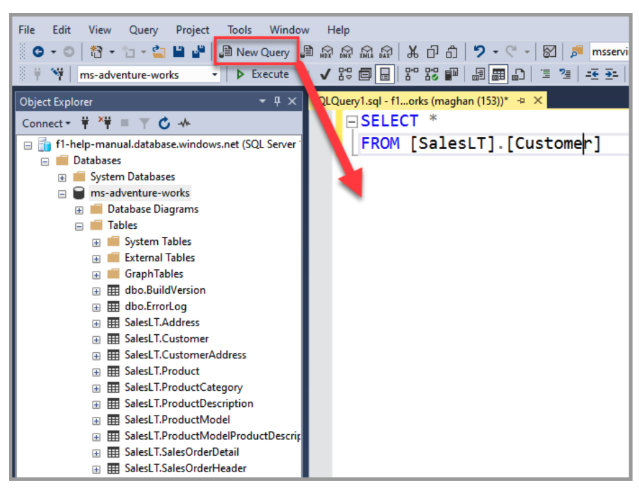 SQL Server Management Studio showing Object Explorer and a new query window with a SELECT statement against a SQL Server database.
Pros
- Native SQL Server administration and security management.
- Familiar, stable interface used across many enterprise environments.
- Solid baseline editor and execution plan visualization.
- Free and fully supported by Microsoft.
Cons
- Windows-only platform limits use in mixed OS teams.
- Limited built-in automation, schema comparison, and deployment tooling.
- Extending workflows often requires scripts or third-party add-ins.
Features
- Query editing and object management tools.
- Graphical execution plans and SQL Server diagnostics.
- Basic database backup and restore capabilities for routine administrative tasks.
Price
Free. The primary cost is operational: teams often invest additional time integrating scripts or complementary tools to support broader development and deployment workflows.
SQL Server GUI tools comparison table (2026)
The following table summarizes how SQL Server Management Studio performs across the daily workflows already discussed: administration, query work, performance analysis, and team operations. It reflects SSMS’s role as a native SQL Server GUI and highlights where teams typically rely on additional tooling.
| Tool | Best For | Query editing | Performance analysis | Schema tools | Automation | Platforms | Free trial |
| dbForge Studio for SQL Server | Professional SQL Server development, DBAs, teams | Advanced editor with intelligent autocomplete, refactoring, formatting | Visual execution plans + Query Profiler with result comparison | Schema compare/sync workflows | Tooling aimed at repeatable deployment workflows | Windows; macOS/Linux via compatibility solutions | Yes (30-day trial) |
| SQL Server Management Studio (SSMS) | Native administration and core SQL Server workflows | Solid but dated editor | Execution plans; Query Store support (SQL Server feature) | Manual schema changes (native) | Limited scripting (mostly DIY) | Windows | Free |
| Azure Data Studio | Lightweight cross-platform workflows (until retirement) | Good editor with extensions | Minimal built-in analysis (extension-based) | Basic schema browsing | Limited automation | Windows, macOS, Linux | Free (but retires Feb 28, 2026) |
| DBeaver | Multi-database environments | Generic SQL editor | Limited SQL Server–specific profiling | Basic schema tools | Task scheduling (basic) | Windows, macOS, Linux | Yes (trial for paid editions) |
How to choose the right SQL Server GUI tool
Choosing the right SQL Server GUI tool in 2026 comes down to how much of the SQL Server lifecycle your day actually touches. Some teams spend most of their time writing queries. Others split their time between performance diagnostics, schema changes, and safe deployments. The right SQL Server GUI should reflect that reality.
Start by looking at where your time goes during a typical week, then use the criteria below to narrow the choice.
Daily query complexity
If your work is limited to simple selects and occasional updates, most SQL Server GUI clients will feel adequate. As query complexity increases (large stored procedures, complex joins, frequent refactoring) editor quality matters more. Features like formatting, navigation, and contextual hints help reduce errors and keep focus during longer sessions.
Need for visual performance diagnostics
SQL Server includes strong diagnostics which tracks execution plans and runtime trends. The deciding factor is how easily your SQL GUI tool exposes that information. When performance tuning is a regular task, tools that integrate profiling and plan comparison into daily workflows save significant time.
Schema change management
Teams working across development, staging, and production environments often struggle with schema drift. In those cases, compare and sync tooling becomes essential. Clear diffs and deployable scripts help reduce release risk and shorten review cycles.
If your organization already relies on formal change pipelines, pairing a SQL Server GUI with a platform like Bytebase can add policy enforcement and approval workflows on top of the editor.
Team collaboration and automation
Some teams need more than a personal SQL client. If standards, reviews, and approvals are part of daily work, you’re choosing both a tool and a process. dbForge Studio for SQL Server supports this model through built-in source control integration, enabling shared standards, change tracking, and collaborative review workflows directly within the SQL development environment.
If the need is internal tooling for non-DBAs (such as admin panels or operational dashboards) a platform like Superblocks can sit on top of SQL Server, but it doesn’t replace a full SQL Server GUI for development work.
Open-source vs professional tooling
Open-source SQL GUI tools work well for accessibility and cross-platform consistency, especially for basic querying. Professional IDEs tend to make sense when performance analysis is frequent, schema comparisons are routine, or teams want a single environment that covers development, diagnostics, and change workflows.
A simple rule helps clarify the decision: if your SQL Server GUI is where production issues are prevented (not just where queries are executed) it should be treated as a productivity and risk-management tool, not a convenience utility.
Takeaway: Which SQL Server GUI tool fits real daily work
Most SQL Server GUI tools cover basic tasks like connecting, browsing tables, and running queries. The real differences, however, appear when daily work becomes complex: performance regressions, schema drift across environments, and the need to ship fixes with confidence.
For teams that need more than administration and basic querying, a single environment that combines development, diagnostics, and change workflows becomes essential. In that context, dbForge Studio for SQL Server stands out as the most balanced option in 2026, bringing query editing, performance profiling, and schema comparison together in a SQL Server–focused IDE.
Download the free 30-day trial of dbForge Studio for SQL Server and test it against your own databases and workflows.
You May Also Like

Q2 Market Insights: Bitcoin regains dominance in risk-averse environment, ETFs remain critical to market structure

Solana clients test Falcon as quantum security debate grows